

Managers Boot Camp
Social Media Toolkit
Are you attending, speaking, or presenting at Managers Boot Camp? Make sure your accomplishments and opportunities are recognized by your fellow pharmacy professionals via your social platforms.
ASHP Social Media Channels:
Find suggested social media captions and graphics below – feel free to modify or personalize these examples or create your own, just don’t forget to tag ASHP in your posts and use our official Leaders hashtag: #ASHPLeaders26
Attendees | Presenters | Speakers
Social Media Captions and Graphics
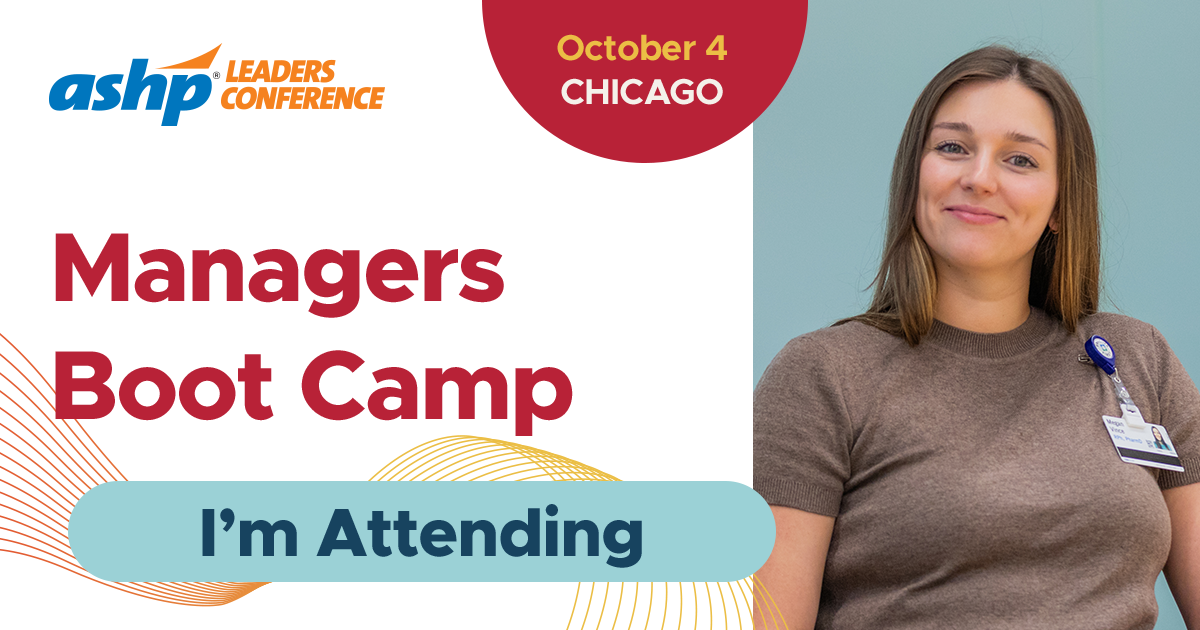
For Attendees
Caption to share on social media:
I’m headed to @ASHPOfficial’s Managers Boot Camp Workshop this October at #ASHPLeaders26! Looking forward to practical leadership insights, peer connections, and fresh ideas to bring back to my team. Join me in Chicago: https://www.ashp.org/meetings-and-conferences/managers-boot-camp-workshop
Download, save and share images on social media:
Facebook/LinkedIn image | Instagram image | X image
Customizable CANVA Templates (view Instructions):
For Presenters
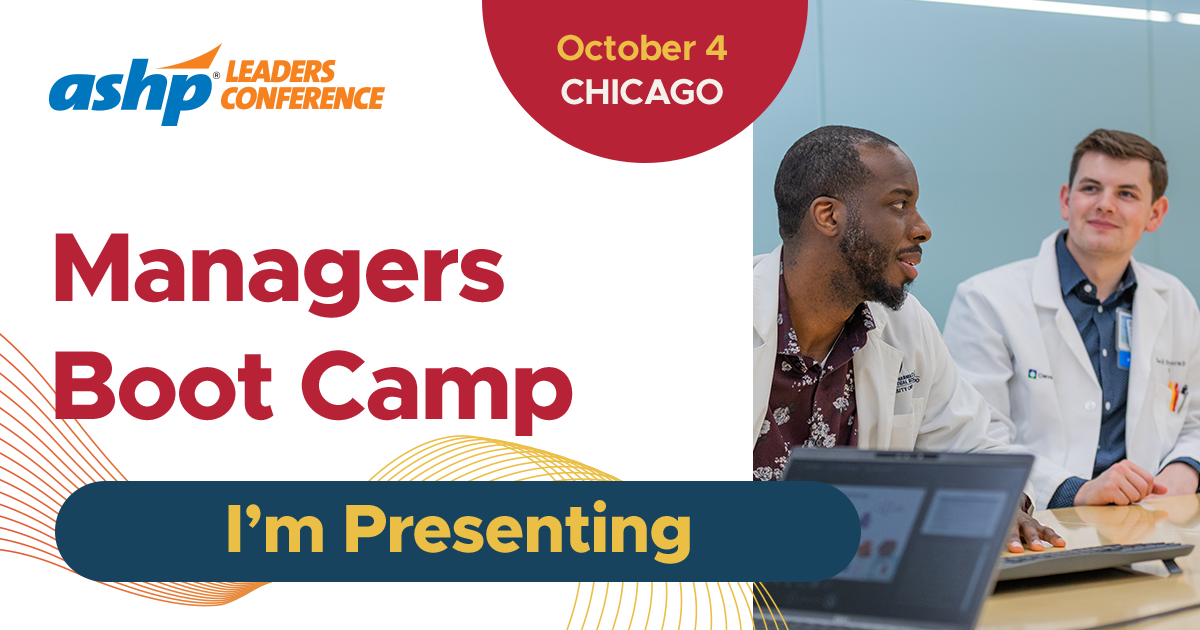
Caption to share on social media:
Excited to present at @ASHPOfficial’s Managers Boot Camp Workshop during #ASHPLeaders26 this October. Looking forward to sharing ideas, learning from colleagues, and connecting with pharmacy leaders in Chicago. Join us: https://www.ashp.org/meetings-and-conferences/managers-boot-camp-workshop
Download, save and share images on social media:
Facebook/LinkedIn image | Instagram image | X image
Customizable CANVA Templates (view Instructions):
For Speakers
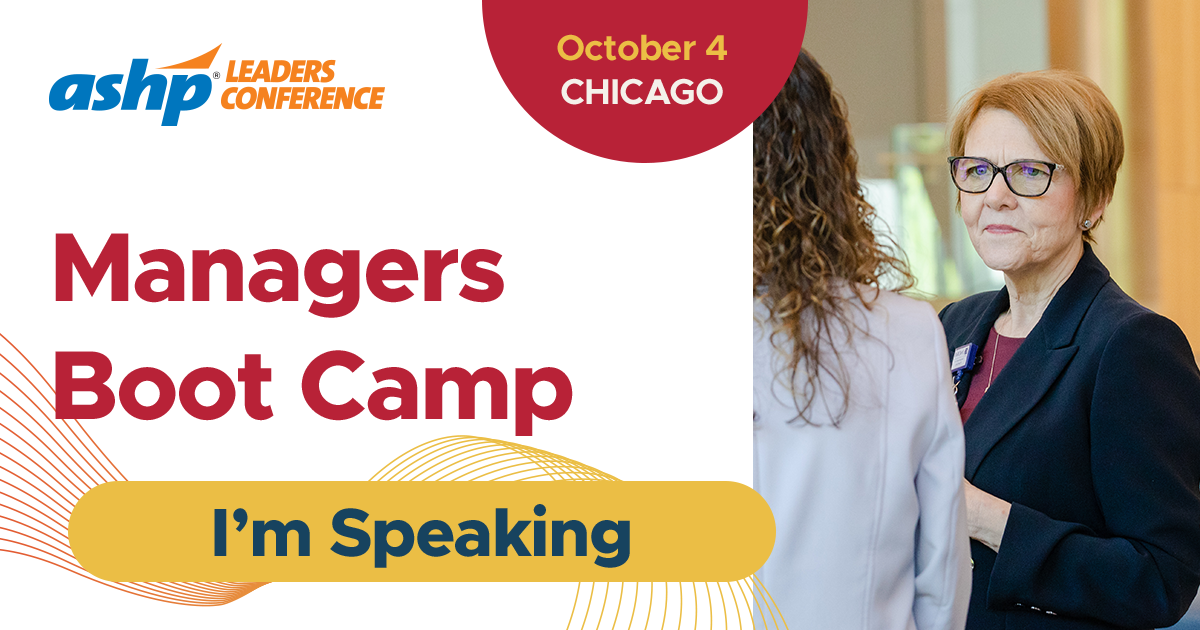
Caption to share on social media:
I’m honored to be speaking at @ASHPOfficial’s Managers Boot Camp Workshop this October in Chicago. Looking forward to engaging discussions, new perspectives, and connecting with pharmacy leaders from across the profession at #ASHPLeaders26. Learn more and join me: https://www.ashp.org/meetings-and-conferences/managers-boot-camp-workshop
Download, save and share images on social media:
Facebook/LinkedIn image | Instagram image | X image
Customizable CANVA Templates (view Instructions):
Customizable CANVA Templates Instructions
- Click on the Canva template link you want to use.
- Click on "View template" purple button.
- Login or create a free Canva account.
- Select the frame you want to edit.
- Select UPLOADS in the left toolbar and click the UPLOAD FILES button to add your photo to the image library.
- Drag and drop your photo into the frame.
- To reposition, double-click your photo and adjust.
- To download your image, click SHARE and select DOWNLOAD.
ADVERTISEMENT